Is Apple’s Personalized Spatial Audio Scan Private?
A practical guide to compatibility, TrueDepth scanning, head tracking, privacy, and supported Apple audio.

Direct Answer
To activate Personalized Spatial Audio, pair your supported AirPods or Beats headphones to an iPhone with a TrueDepth camera, open your headphone settings menu, and complete the guided camera mapping of your face and ears. Once established, your customized sound profile syncs automatically to all compatible Apple hardware connected under the same Apple Account.

Understand What the Scan Measures
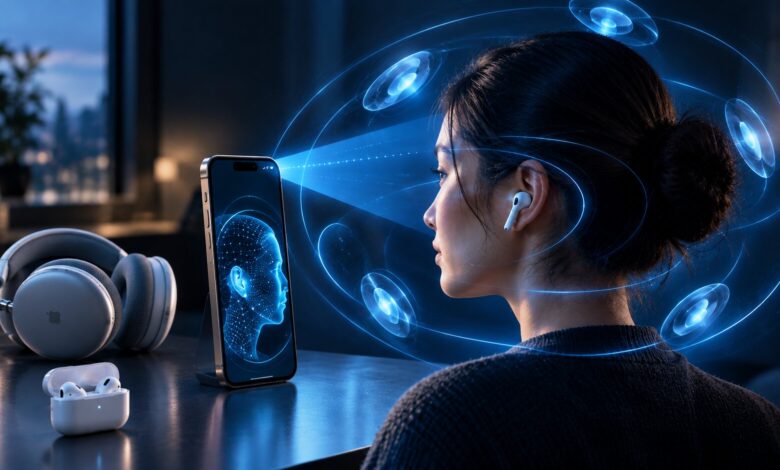
The setup uses the TrueDepth camera to measure the shape of the head and ears. Apple says the camera data is processed on the device rather than stored as ordinary photos.
Anyone concerned about biometric-style measurements should review Apple’s current privacy documentation and can remove the personalized profile from headphone settings.
System Requirements for Building Your Profile
Before starting the setup process, ensure you have the necessary hardware and software ready:
- An iPhone equipped with a TrueDepth front camera system.
- Supported AirPods or Beats headphones (including AirPods Pro, AirPods Max, or Beats Studio Pro).
- Up-to-date firmware on your headphones and current iOS software.
- Media formatted in Spatial Audio or Dolby Atmos.
How to Create the Audio Profile
- Put on your supported headphones and ensure they are actively paired with your iPhone.
- Launch Settings on your device.
- Select your connected AirPods or Beats listed near the top of the menu.
- Scroll down, select Personalized Spatial Audio, and choose the option to start personalization.
- Hold your phone about a foot from your face and complete the frontal scan following the visual prompts.
- Angle your head as guided so the camera can map the unique contours of your left and right ears.
- Complete the scan and play a test clip to confirm your new profile is active.
The iPhone gives clear visual feedback during the scanning process, so you don’t need any special fixtures, tripod mounts, or technical expertise to get an accurate capture.
How to Toggle Spatial Audio and Motion Tracking Modes
Once your custom profile is saved, you can easily control how sound responds to your movement during playback. Swipe down to open Control Center, press and hold the Volume bar, and tap the Spatial Audio icon.
- Head Tracked: Sound stays dynamically fixed to your display screen, shifting around you as you turn your head.
- Fixed: Immersive 3D audio stays active, but the soundstage remains stationary regardless of how you move your head.
- Off: Disables all spatial processing and returns playback to traditional stereo sound.
While Personalized Spatial Audio adjusts the actual frequency response for your physical ear shape, these Control Center toggles dictate how the audio field behaves when you move around.
Supported Media and Content Performance
Custom spatial profiles deliver their most dramatic improvements when streaming movies, TV series, or video calls mixed in Dolby Atmos. Sound cues appear to originate from distinct spots across your room rather than simply firing into your ears.
For music tracks, the spatial impact depends heavily on how the sound engineer engineered the mix. Trying out a few different albums helps you determine whether you prefer the spatial mix over standard stereo.
Key Privacy Considerations Before Scanning
Unlike standard equalizer presets, Personalized Spatial Audio relies on actual physical measurements of your head and ears. Understanding how these measurements are handled gives you confidence in managing your account data.
Separate camera access from photo storage
The TrueDepth camera guides the scan, but Apple says the setup images are not stored as ordinary photos. Users can still verify the current policy because software behavior and privacy documentation can change over time.
Review account syncing
The finished profile can become available on supported Apple devices signed into the same Apple Account. Anyone sharing devices or using managed work hardware should confirm which account is active before completing the scan.
Know how to remove the profile
The personalized profile can be disabled from the connected headphone settings. Removing it is the clearest choice for a listener who no longer wants the measurements associated with the account or who wants to create a new scan.
Recheck privacy after major updates
Apple may update compatible devices, syncing behavior, or privacy language. A short review after major iOS and headphone firmware releases keeps the decision informed instead of relying on the original setup screen forever.
Frequently Asked Questions
Can you set up Personalized Spatial Audio without owning an iPhone?
No, you must use an iPhone equipped with a TrueDepth camera to execute the initial face and ear scans. However, once created, your profile syncs automatically to your Mac, iPad, or Apple TV through your Apple Account.
Are facial setup scans saved as regular photos?
No, Apple processes setup data locally on your device to create an acoustic model, and the captured images are never stored in your camera roll.
How do you delete a Personalized Spatial Audio profile?
Open Settings on your iPhone, select your connected headphones, tap Personalized Spatial Audio, and select the option to stop using the profile. You can re-scan your features whenever you wish.
The Bottom Line
Setting up Personalized Spatial Audio takes only a couple of minutes and offers a tailored surround-sound experience tuned to your personal acoustics. Complete the brief camera scan on your iPhone, then test both Head Tracked and Fixed modes with a familiar movie to find your preferred setup.
Source: Apple. Read the original article.
Read more:
- How to Master Apple Notes AI Features
- How to Use Apple’s Live Rewind Audio Intelligence?
- Related reading on techieclouds.com: Connect AirPods to iPhone, Mac, or Android; Manage optimized battery charging on AirPods.