Can You Export Apple Math Notes as Markdown?
A practical guide to interactive 3D equations, folders, tags, Smart Folders, and Markdown export on iPhone.
Direct Answer
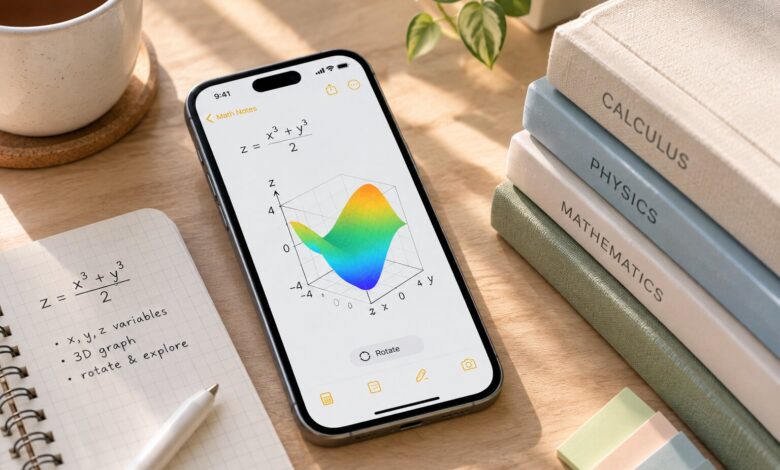
Apple Math Notes 3D graphs make it easier to explore how an equation behaves by turning a mathematical expression into a surface you can rotate and examine. The challenge comes when you want to share that work or keep a permanent record. A good approach is to save the original math note, document what the graph reveals, and check any exported Markdown file before using it elsewhere.

Key Takeaways
- Explore equations interactively in Math Notes, then record the observations that matter.
- Keep the original note as your working copy when the graph’s interactive features are important.
- Treat Markdown as a portable text format, not a guaranteed replica of an interactive math workspace.
- Inspect exported files for missing equations, images, formatting, and other technical details.
- Add a short explanation or screenshot when someone needs to understand a graph outside Math Notes.
From Equation to Surface: A Quick Refresher
Before preparing a graph for sharing, make sure the original expression and its visual representation are correct.
Math Notes is available through the Calculator app on supported Apple devices. To try an Apple Math Notes 3D graph:
- Open Calculator and switch to Math Notes.
- Start a new math note or open an existing one.
- Enter an equation that defines (z) in terms of (x) and (y). For example, (z=(x^3+y^3)/2).
- Select the equation and look for the option to insert a 3D graph.
- Rotate the resulting surface to examine its shape from different viewpoints.
The graph can help you notice features that are harder to interpret from the equation alone. However, appearance is only one part of the analysis. Keep the original expression nearby so you can connect your observations to the mathematics.
Menu names and feature availability may vary with the device and software version. If the graph option is missing, consult Apple’s current support documentation for your setup.
Why an Exported Graph May Need Extra Context
An interactive surface and a written description serve different purposes. In Math Notes, you can manipulate the graph to inspect it. In a Markdown document, the same interaction may not be available.
That difference matters when you’re preparing class notes, technical documentation, or material for a colleague. A file that contains the equation but omits the visual reference may leave readers guessing about what you observed.
Before exporting, decide what the recipient actually needs:
- The calculation: Include the equation and any relevant working.
- The visual result: Add a screenshot if the shape itself is important.
- The interpretation: Write a sentence or two explaining what you noticed.
- The original interactive view: Keep access to the original Math Notes document rather than relying on Markdown alone.
This small preparation step makes your work more useful beyond the app where you created it.
A Reliable Way to Check a Markdown Export
Apple Notes supports Markdown export, which can be handy when transferring written material into another editor or documentation system. Still, don’t assume the exported file will look or behave exactly like the original note.
Use this process to catch problems before sharing it.
1. Export a copy
Open the relevant note in the Notes app, use the Share menu, and choose the Markdown export option if it’s available. Save the exported file somewhere you can inspect it without replacing your original work.
2. Open the actual file
Check the exported Markdown in a text editor or the application where you intend to use it. A successful export doesn’t necessarily mean every element has transferred correctly.
Look for:
- Missing or altered mathematical expressions
- Headings and lists that no longer have the right structure
- Broken links or image references
- Special characters that appear incorrectly
- Graphs or other visual elements that are absent
3. Compare it with the original
Keep the original note open while reviewing the exported version. Compare the equation, supporting explanation, and any images you expected to carry over.
If a detail has disappeared, decide whether to restore it manually, add a screenshot, or explain the missing visual in text. Don’t rely on the exported file until you’ve checked the parts that matter to your work.
4. Test the file where it will be used
If you’re moving the content into a website, report, or shared document, check it there as well. Formatting that looks correct in one editor may not display the same way in another.
Keep the Original Note and the Supporting Material Together
A graph is more useful when you can remember why you created it. Rather than saving an equation and leaving the reasoning in a separate document, keep the essential context together.
For a graphing exercise, include:
- Question: What are you trying to understand?
- Equation: Which expression did you graph?
- Observation: What did you notice while rotating the surface?
- Interpretation: How does the graph relate to the mathematical question?
- Next step: What would you change, test, or calculate next?
You don’t need to write a long report for every equation. Even a few specific sentences can make a note much easier to revisit later.
Give the note a title that describes its purpose, such as “Investigating a Cubic Surface” or “Comparing Two Functions.” That is more helpful than a generic title when you’re searching through older work.
Organize the Notes You Want to Find Again
Apple’s Notes app offers several ways to keep related material together. Choose an arrangement that reflects how you work instead of creating a complicated filing system from the start.
Use folders for larger categories. You might separate Calculus, Physics, Engineering, and Research, then create subfolders for longer courses or projects.
Use tags for connections across folders. Tags such as #calculus or #research can help group related notes even when they live in different places.
Use Smart Folders for filtered collections. Set up a Smart Folder around useful tags or other supported criteria to bring matching notes together automatically.
Review your tags occasionally. If you create too many overlapping labels, searching can become harder rather than easier. A small, consistent set is often enough.
Frequently Asked Questions
What are Apple Math Notes 3D graphs used for?
They let you visualize equations involving (x), (y), and (z) as interactive surfaces. Rotating a graph can help you inspect its shape from different angles.
Does Markdown preserve an interactive 3D graph?
You should not expect Markdown to preserve the full interactive graph experience. Check the exported file, and use a screenshot or written explanation when the visual result needs to travel with the document.
Should I delete the original note after exporting?
Keep the original if you may need to revisit the interactive graph or verify your calculations. An exported file is useful as a separate copy, but it may not retain every feature of the original.
Is Math Notes the same as Apple Notes?
No. Math Notes is accessed through Calculator and provides a space for mathematical work. The Notes app is used for broader note-taking and provides organization and export tools.
Why can’t I find the 3D graph option?
Feature availability can depend on the device and software version. Check Apple’s current documentation for compatibility and instructions specific to your setup.
The Bottom Line
Apple Math Notes 3D graphs are useful for exploring equations, but sharing that work takes a little extra care. Preserve the original note, record what the graph helped you discover, and verify the Markdown export before depending on it.
For exact instructions and feature availability, consult Apple’s official guides to creating 3D graphs in Math Notes, organizing notes with folders, and exporting notes as Markdown.
You might also like:
- Using Apple’s Live Rewind Audio Intelligence
- Related reading: Apple Notes tools for digital organization; How to prepare and organize a new iPhone.